Symphony

A worksheet for every conversation.

Mira, the Symphony — holding her worksheet mug and Symphony notebook
Features

Six commands. Works with Excel.

Submit
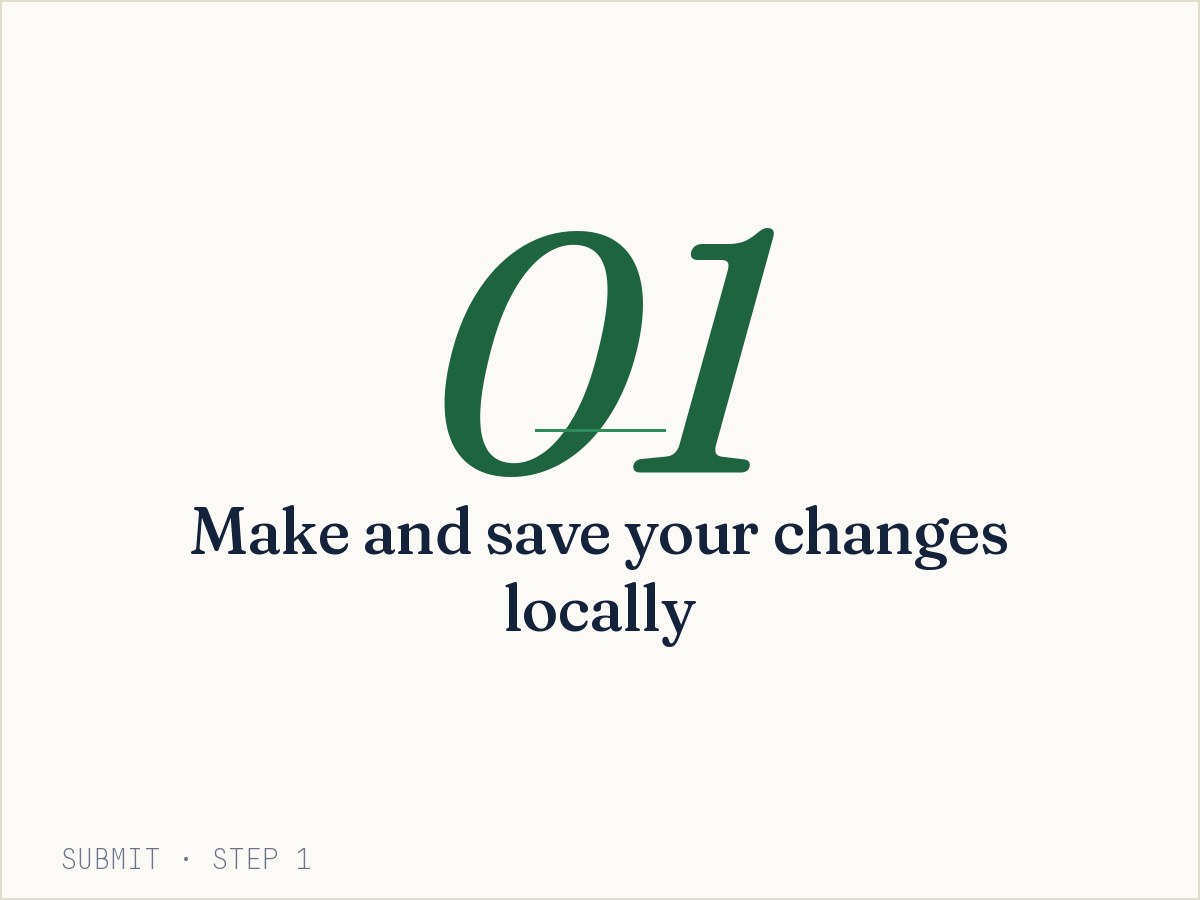
  1. Make and save your changes locally
  2. When ready, Submit and explain changes
  3. Teammates get notified
See it in action
Refresh
  1. Open the Worksheet
  2. When ready, click on Refresh
  3. See exactly what changed
See it in action
Invite
  1. Select a worksheet and click Invite
  2. Add emails and send invite
  3. They open the worksheet in their Excel
See it in action
Changes
  1. Select cell, row, or sheet
  2. Click Changes and select the time window
  3. Review the changes and chat comments
See it in action
xCopy
  1. Select a source worksheet
  2. Click xCopy
  3. Ready to paste anywhere
See it in action
xPaste
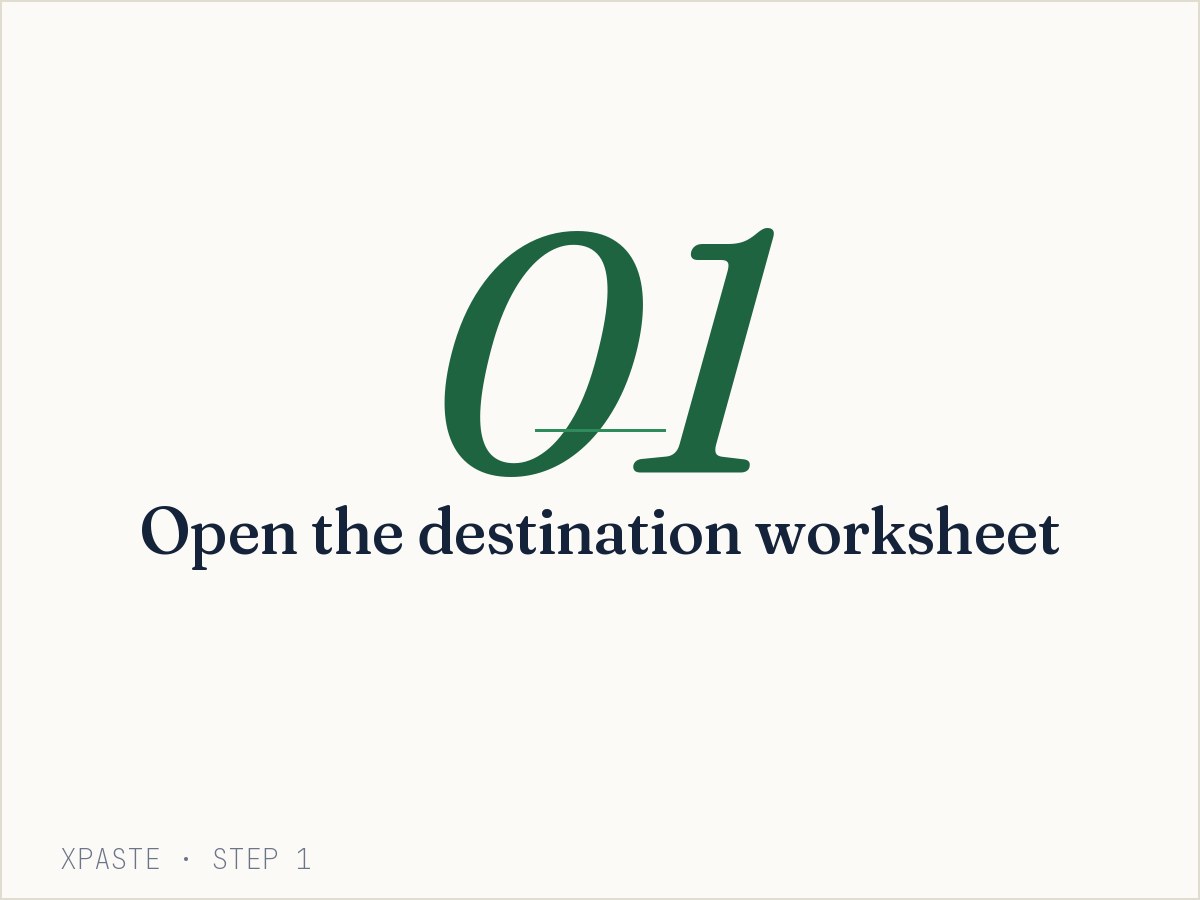
  1. Open the destination worksheet
  2. Click xPaste in the ribbon
  3. Ready to Submit and Refresh
See it in action
Feature How To

Learn each command in three easy steps.

Submit
Submit preview
3 Steps
See the 3 steps
Refresh
Refresh preview
3 Steps
See the 3 steps
Invite
Invite preview
3 Steps
See the 3 steps
Changes
Changes preview
3 Steps
See the 3 steps
xCopy
xCopy preview
3 Steps
See the 3 steps
xPaste
xPaste preview
3 Steps
See the 3 steps
Benefits

Benefits of Worksheet Sharing.

Multiple private conversations in a single workbook.

Conduct a private conversation per worksheet — bring together multiple conversations into a single workbook.

Reuse worksheets in multiple workbooks.

xCopy and xPaste allow you to bring the same worksheet into multiple workbooks and keep them in sync. This lets you bring relevant information together in a workbook — making your work easier and higher quality.

Build purposeful workbooks.

Build a workbook with the right worksheets to streamline communication and decisions.

Isolate, think, change and then share.

Symphony lets users work privately and in parallel — users Submit or Refresh only when they are ready to share changes. Unlike real-time co-authoring, don't confuse peers with work-in-progress changes.

Understand changes.

Understand who changed a cell, a row, or a worksheet — when, and why. This makes changes easier to understand, and efficient.

Transactions.

Every Submit groups a set of cell, row, and column changes in a single transaction. Transactions capture only user-permitted, consistent data — compared to file versioning that captures all keystrokes and all the associated noise at a file level.

Under the hood

A chain of transactions.

Worksheet conversations change over time. Symphony captures the chain of values, users, time, and reasons that led to the evolution — what, why, who, and when.

Cell or Row or Worksheet Transactions T1 Mira's Worksheet 1 T2 Busy's Worksheet 2 3 T3 4 T4 5 T5 6 7 8 T6 Diff( T5, T1 )
Symphony Transactions
Mira's private branch
Busy's private branch
01
What happens

Mira Submits her first worksheet. Symphony creates Transaction T1.

The benefit

Every change captures user, time, and reason — an audit trail from day one.

02
What happens

Busy starts her own private branch off T2.

The benefit

Isolate your work — no interference with anyone else's version of the worksheet.

03
What happens

Mira iterates privately, then merges her changes to create T3.

The benefit

Refine as many times as needed before showing the team a mature version.

04
What happens

Busy iterates in parallel, refreshing from T4 to see main's latest state.

The benefit

Two users work at full speed — no locking, and unsaved changes are never lost during refresh.

05
What happens

Busy submits her mature branch, creating T5 on the main worksheet.

The benefit

Only complete, considered changes flow into shared main — no half-formed work exposed.

06
What happens

Mira refreshes from T5 to bring Busy's changes into her own branch.

The benefit

Independent work stays aligned with the team's latest, without ever leaving your workspace.

07
What happens

Mira pulls an older transaction (T2) forward into her current work.

The benefit

Nothing is ever truly lost — history can flow back into the present when it's needed again.

08
What happens

Mira saves her final decision as T6, with the reason attached.

The benefit

The main worksheet always knows why it's in its current state — decisions live with their rationale.

09
What happens

Compare any two transactions — Diff( T5, T1 ) tells the story of what changed between them.

The benefit

The full audit — what, why, who, and how — is always recoverable, at any point in time.
How to use Symphony

Many shapes of conversation.

01
Star
Communicate with many people to generate a summary.
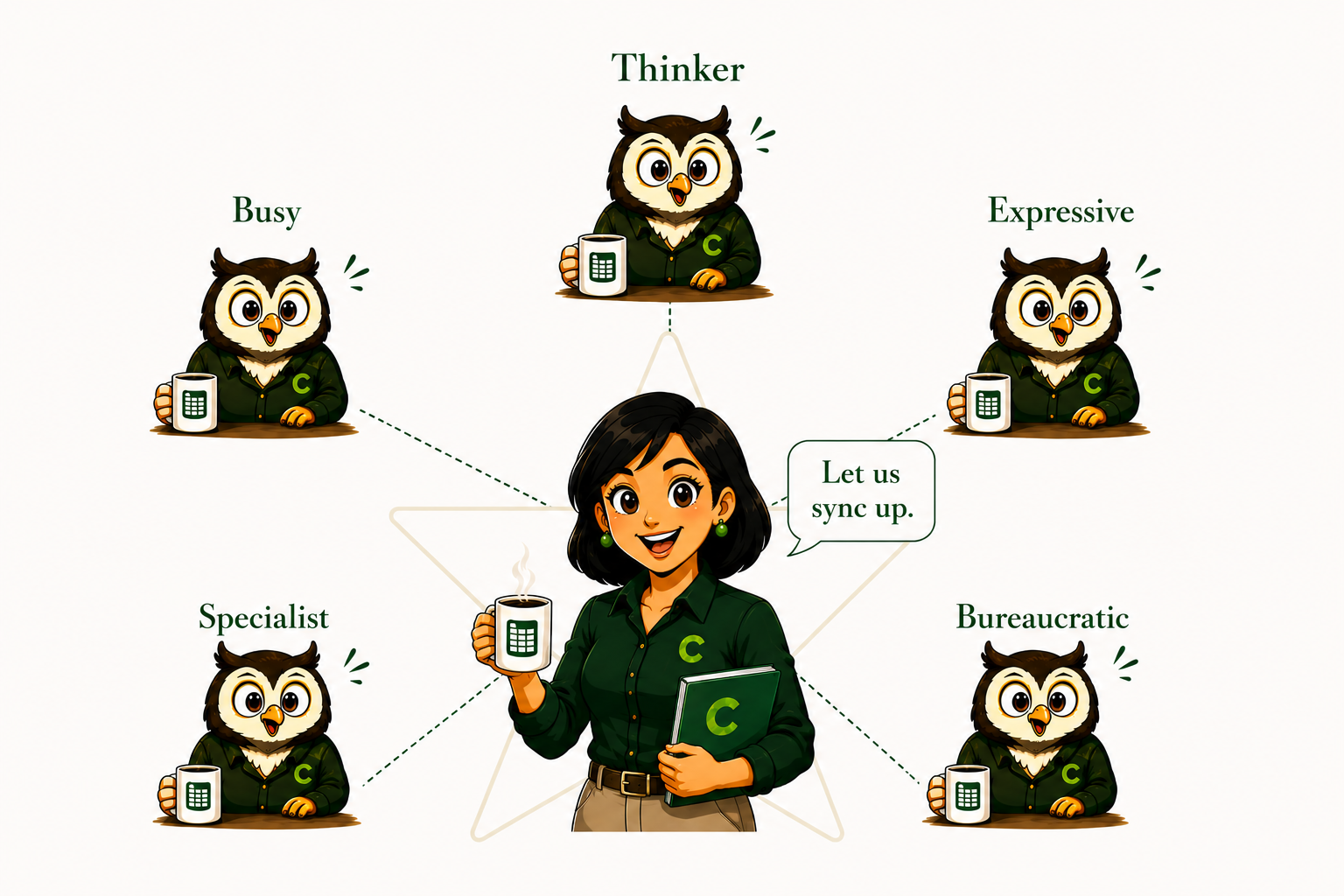
Star Shape: Mira at the center synthesizing inputs from five owl contributors — Thinker, Busy, Expressive, Specialist, and Bureaucratic

You are responsible for producing a worksheet on a regular schedule. To do this, you need input from a group of contributors.
  1. Invite each contributor to work privately on dedicated worksheet(s)
  2. Refresh their inputs and iterate until you reach alignment
  3. Update the final worksheet
  4. Invite interested parties to view the final worksheet
02
Gateway
Control the flow of information between groups.
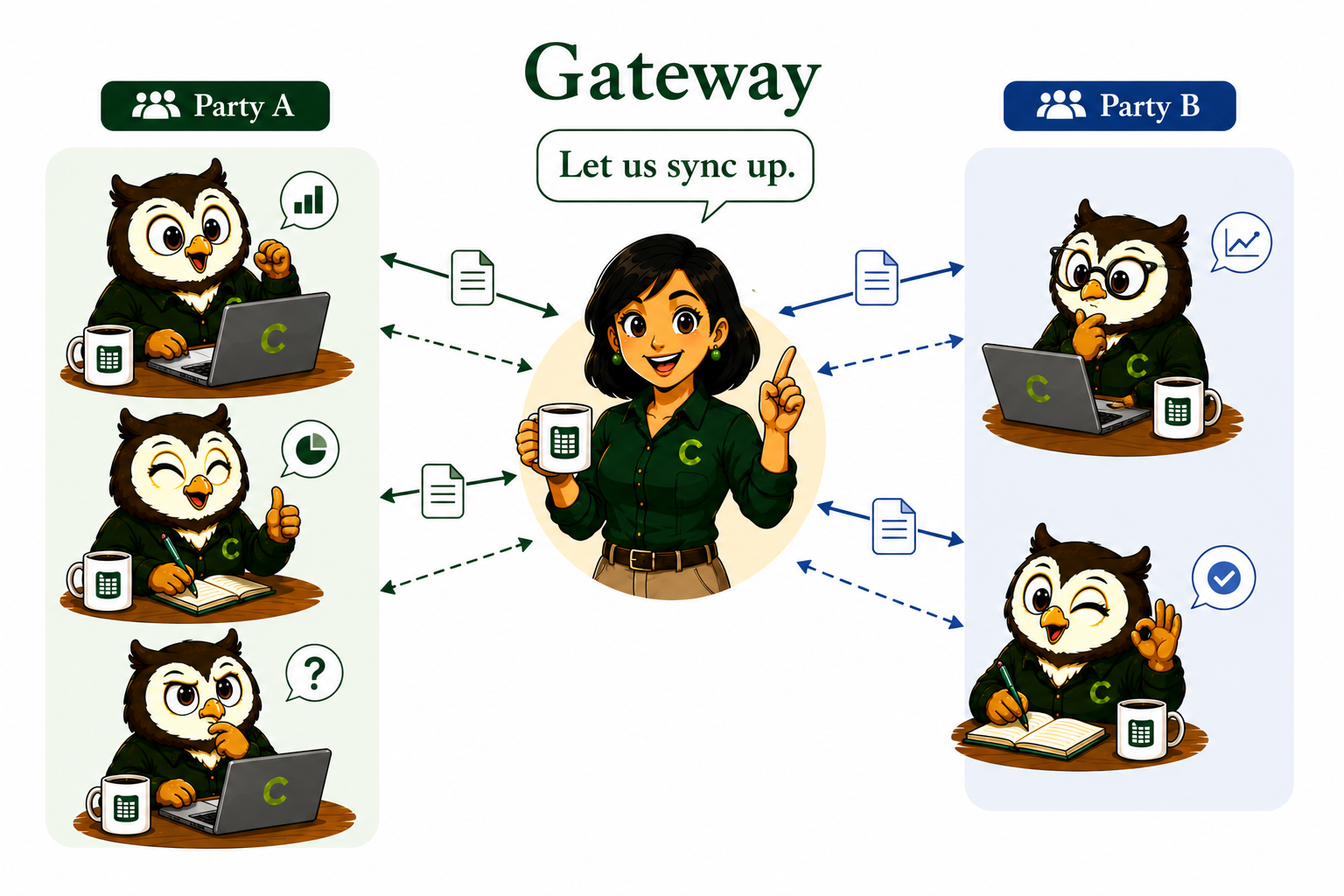
Gateway Shape illustration

You are the bridge — the liaison between two important parties.

  1. Invite each party to private and dedicated worksheet(s)
  2. Refresh key inputs from one party and update the second party's worksheet
  3. Submit changes to the second party
03
Adhoc
Crisis management or an urgent creative exploration.
Adhoc Shape illustration

You are in the middle of an urgent crisis or creative exploration.
  1. Invite your trusted circle to a set of common or dedicated worksheets
  2. Submit and Refresh as a group or privately
  3. Iterate until you arrive at a solution
04
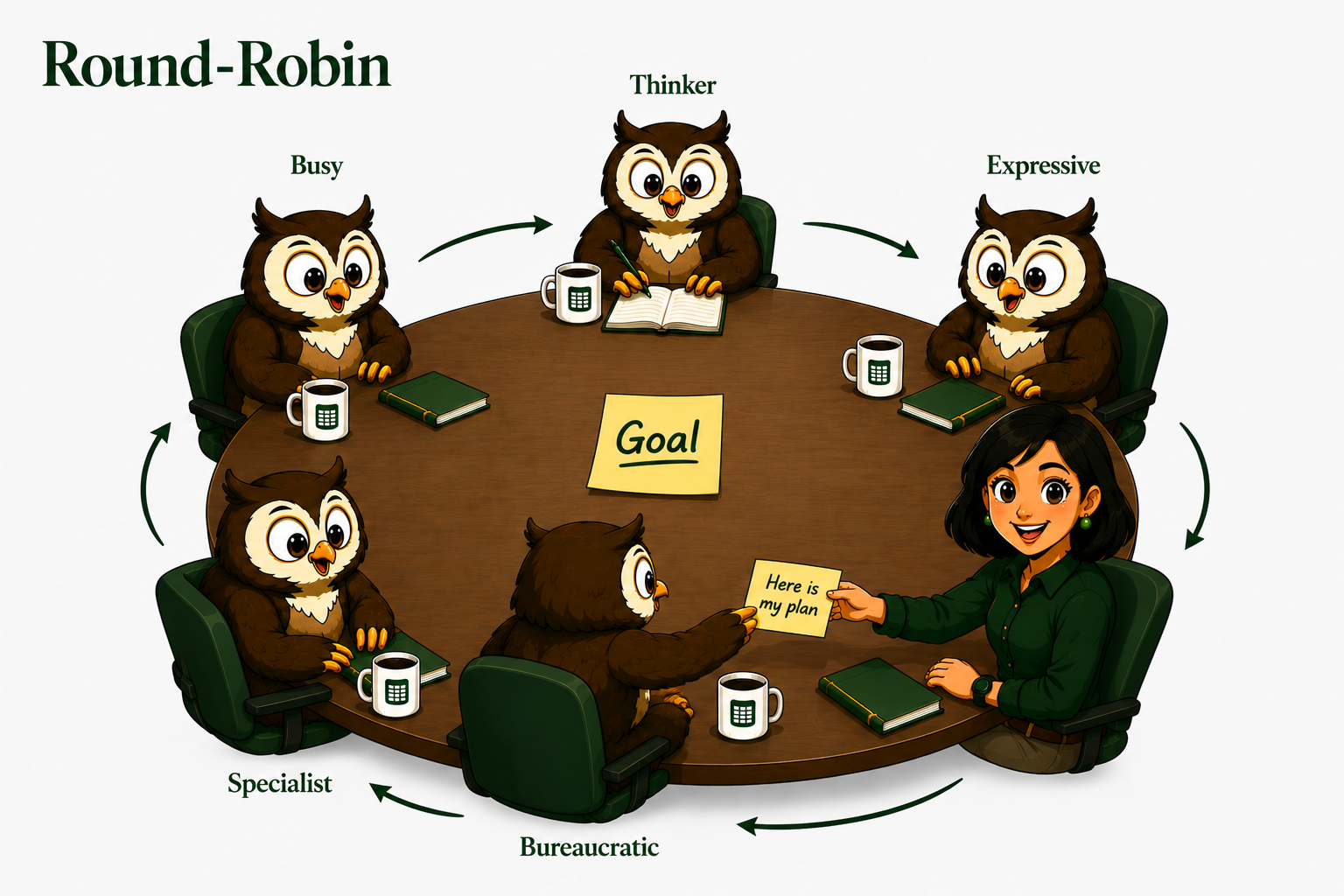
Round-Robin
Align a circle of peers to meet a higher-level objective.
Round Robin Shape illustration

You and a group of peers have been given a goal — with a circular dependency on each other to build the plans that meet it.
  1. You and your peers are sitting at a round table
  2. The person to your right has invited you to their plan worksheets — xCopy / xPaste them into your workbook
  3. Refresh these worksheets to receive their latest plans
  4. Work privately and update your specialized worksheets
  5. When ready, update your final plan worksheets — the ones you shared with the person on your left
  6. Go around the circle until everyone is aligned
05
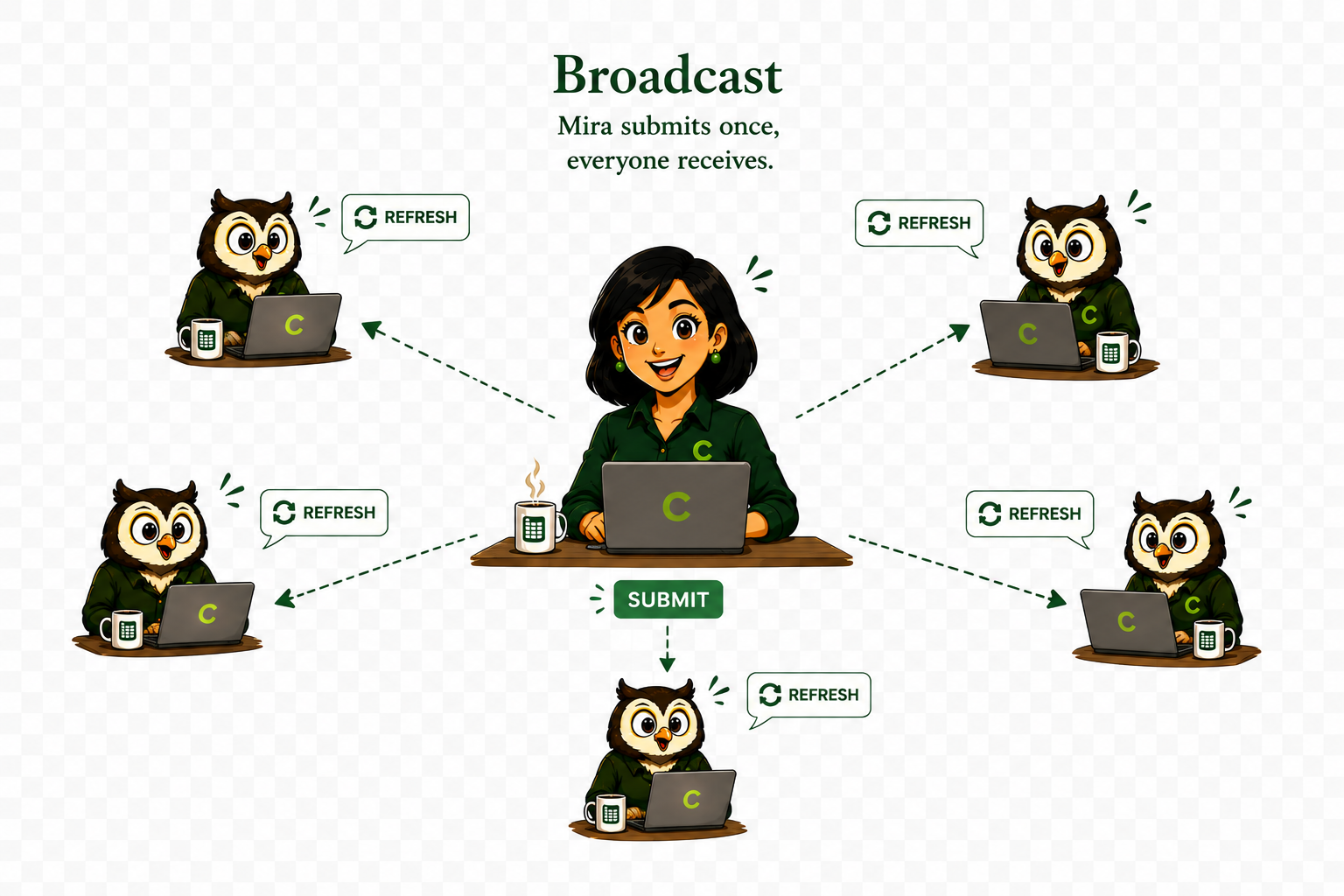
Broadcast
Manage and publish commonly used information.
Broadcast Shape illustration

You are responsible for periodically updating a worksheet that is used by multiple parties.
  1. Invite parties to access the worksheet
  2. Parties open the worksheet in their workbooks
  3. Submit new information and notify parties
  4. Invited parties Refresh to see what changed
06
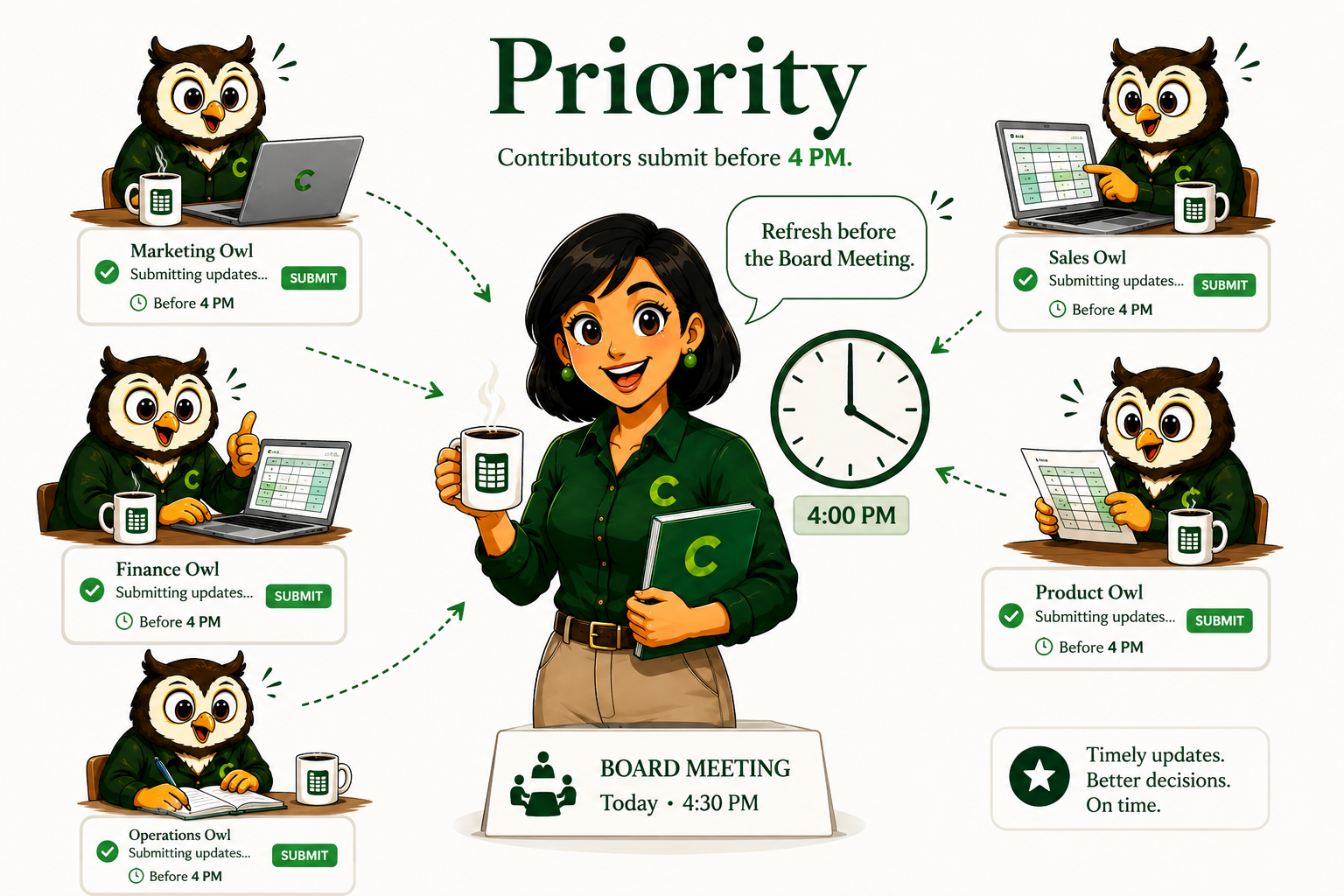
Time & Space Priority
Collect time-sensitive updates.
Time & Space Priority Shape illustration

You need information from a contributor at a specific time.

  1. Invite a contributor to update the worksheet before a specific time
  2. The contributor Submits data before the agreed-upon time
  3. Refresh the worksheet at the designated time to see what, why, who, and when it changed
Download

Get the Symphony add-in for Windows or Mac.

Download for Windows
Excel 2016 or later · Windows 10 / 11
Download for Mac
Coming soon
Coming soon
Symphony is free.
Get Started